Making Projects Billable
Enable billing on projects, assign clients, and set hourly rates to start tracking billable work.
To include sessions in your timesheets and invoices, you first need to enable billing on the associated project and assign a client.
Enable Billing on a Project
- Navigate to the Projects page
- Click on a project card to open the detail sheet
- Scroll to the Billing section
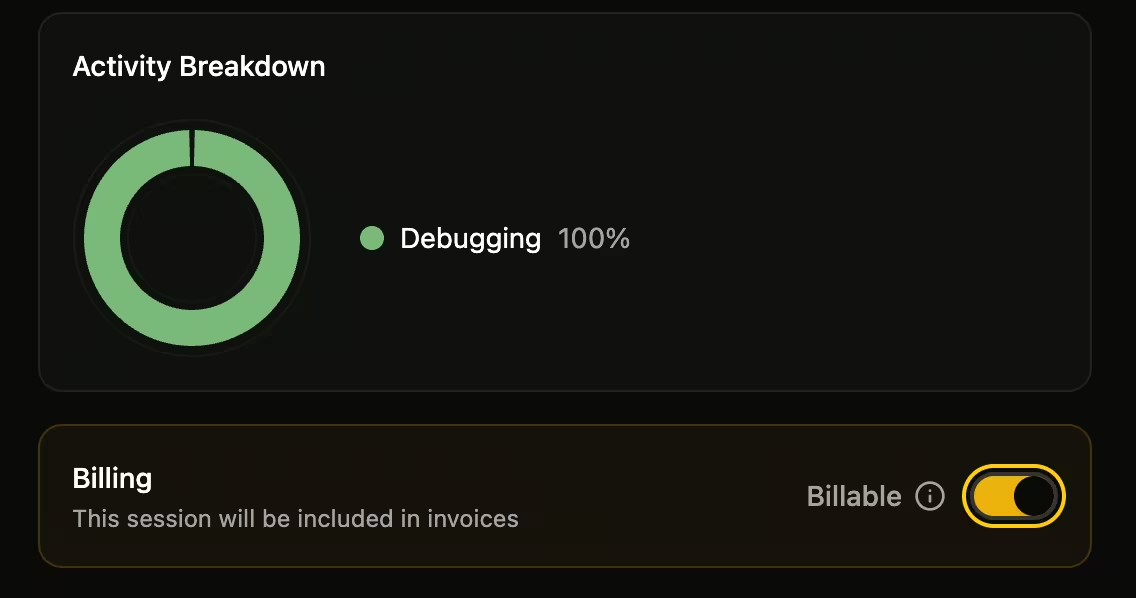
- Toggle Billable Project to ON
Assign a Client
When you enable billing, you'll be prompted to assign a client:
- Select an existing client from the dropdown, or
- Click the + button to create a new client inline
The client assignment is required for sessions to appear in your timesheets with proper billing attribution.
Set an Hourly Rate
Optionally, set a default Hourly Rate for the project. This rate will be applied to new work items created from sessions in this project.
How Sessions Inherit Settings
When sessions are synced to timesheets:
- They inherit the project's client assignment
- They use the project's hourly rate (if set)
- Only sessions from billable projects appear in timesheets
You can still override the rate or client on individual work items if needed.
Was this page helpful?