Figma Design Tracking
Track time in the Figma desktop app as real design hours, and optionally attribute each block to the file and project you were working on.
The DevClocked Mac app tracks time in the Figma desktop app the same way it tracks coding time: as real, attributable hours on your timeline. Design work is classified as design (planning) activity and counts as normal tracked hours.
Design tracking requires the DevClocked Mac app v1.4.39 or later and applies to the Figma desktop app.
Two levels of tracking
- Tier 1 — automatic. With the Mac app running, time spent in Figma is captured as design time. Nothing to enable, no permissions to grant.
- Tier 2 — opt-in file names. DevClocked reads the Figma window title so design time is attributed per file and can auto-map to a project. Off by default; requires macOS Accessibility access.
Tier 1: automatic design time
Keep the Mac app running and design as normal. Time with Figma focused is recorded as design activity and shows up in Sessions as a design work block in the design/figma bucket, marked for review.
DevClocked doesn't know which project that time belongs to yet, so the block waits on the Actions page. Link it to a project once and the link sticks — future design time flows to the same project automatically.
Tier 2: track design file names
Turn this on if you want design time attributed to the individual Figma file you were in, and auto-mapped to projects by file name. It's opt-in because it needs macOS Accessibility access to read the Figma window title.
- Open the DevClocked Mac app and go to Settings.
- Scroll to Design Tools and check Track design app file names.
- Click Save. The checkbox on its own does not persist — the setting is only stored when you save.
- Click Grant Accessibility Access and approve DevClocked in the macOS System Settings prompt.
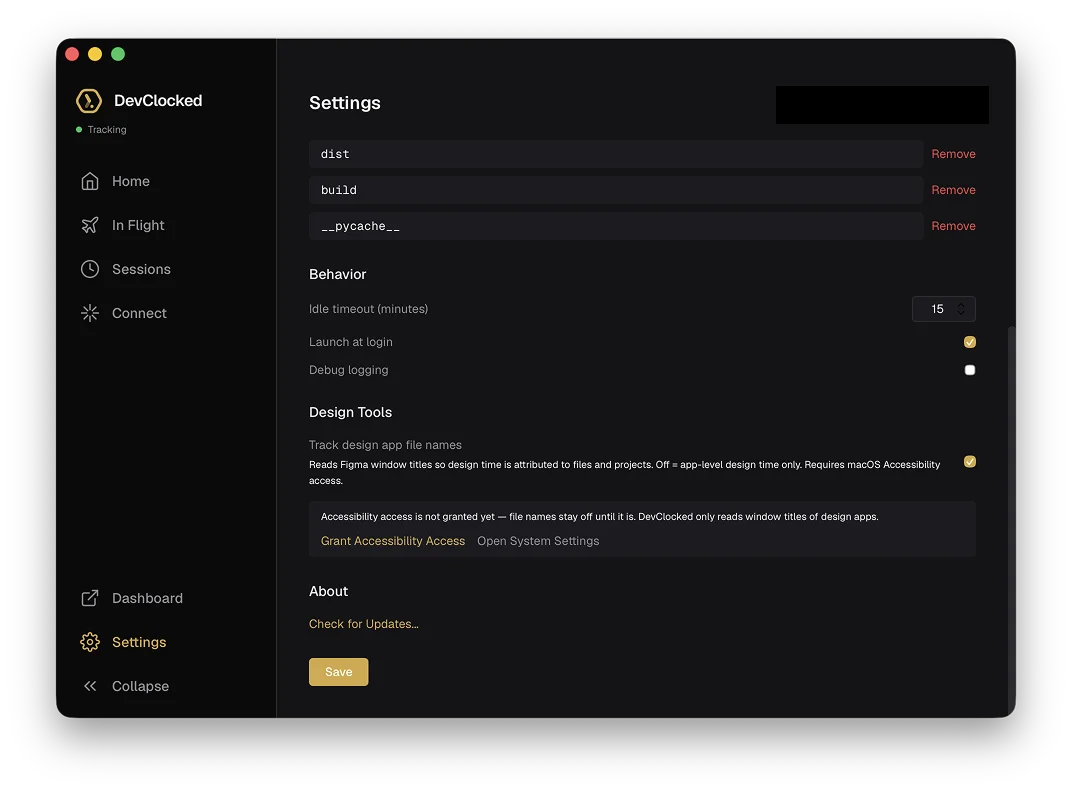
The change takes effect within seconds — no app restart is needed. Until Accessibility access is granted, the app shows a "not granted" notice and file names stay off; design time still lands as Tier 1 app-level design time in the meantime.
Naming files so they map to projects
With file-name tracking on, DevClocked reads the part of the file name before a dash as the project name and auto-maps it when it matches a DevClocked project name or alias. Name Figma files "Project — File name":
Passly — Onboarding flowmaps to the Passly project.DevClocked — Reports v2maps to the DevClocked project.
Type an em dash on a Mac with Shift-Option-hyphen (—); an en dash (–) works too. A plain spaced hyphen (Project - File name) is not currently split — a fix is in progress.
Files without a recognizable project name land as their own design bucket on the Actions page. Linking that bucket to a project once creates a permanent alias, so the same file maps itself from then on.
Privacy
- Off by default — file-name tracking is opt-in and does nothing until you enable it and grant access.
- Design apps only — DevClocked reads window titles of design apps only, never titles from any other app.
- Never file contents — the contents of your files are never read.
- Explicit macOS grant — the feature requires the macOS Accessibility permission you approve yourself, and stays off until you do.
- Naming only — titles are used only to name the file and project bucket the time belongs to.
Troubleshooting
The "not granted" notice doesn't clear after approving.
Quit and reopen the Mac app. The notice should be gone and file names start appearing on new design blocks.
File names still aren't showing up.
Confirm you clicked Save after checking the box — the checkbox alone does not persist — and that DevClocked is approved under Accessibility in macOS System Settings.
Design time isn't reaching the right project.
Open the Actions page and link the design bucket to the project once. If you're relying on file names, check that the file uses an em or en dash and that the project part matches a DevClocked project name or alias.
For everything else the Mac app does, see the Mac App + Sidecar Guide.
Was this page helpful?